The Ultimate Core Web Vitals Optimization Guide: Dominate Google’s User Experience Rankings

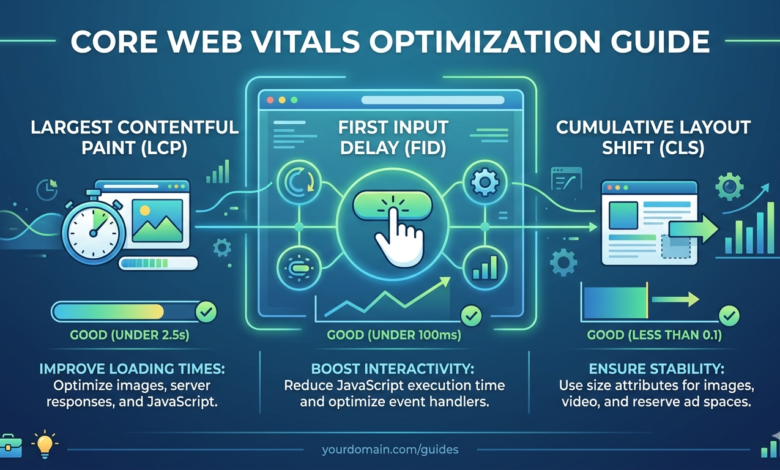
Core Web Vitals Optimization Guide Let’s be completely honest: nobody likes a slow website. If your site takes more than a couple of seconds to load, freezes when a user tries to tap a menu button, or jumps around wildly while images are loading, your visitors are going to leave. Even worse, Google notices this frustration and will actively push your content down the search results page.
That is exactly why understanding a core web vitals optimization guide is no longer optional for modern digital marketing. Google uses these specific speed and user experience metrics as major ranking factors to separate high-quality web engineering from clunky, outdated sites. If you want to pull in sustainable organic traffic, keeping your site fast and visually stable is just as important as writing great content.
This comprehensive core web vitals optimization guide will break down exactly what these metrics mean, why they matter for your search visibility, and the practical technical steps you can take to achieve straight aces on your next performance audit.
What Are Core Web Vitals and Why Should You Care?
Core Web Vitals are a standardized set of real-world metrics that Google uses to evaluate the overall user experience of a webpage. Instead of just measuring raw server response times, these metrics focus heavily on perceived performance—how quickly an actual user can see content, interact with your elements, and navigate your design without annoying layout shifts.
When you dive into a core web vitals optimization guide, you are focusing on three pillars: loading performance, interactivity, and visual stability. Google pulls this data from the Chrome User Experience Report (CrUX), meaning your scores are determined by how actual, real-life users experience your site out in the wild on varying mobile networks and devices.
Nailing your scores is one of the most effective ways to outrank your competitors. When two sites have equally good content and keyword targeting, the site that prioritizes a core web vitals optimization guide and delivers a flawless user experience will almost always win the higher ranking spot on Google.
Crucial Quick Facts: Core Web Vitals At A Glance
.png)
Before we dive into the deeply technical aspects of our core web vitals optimization guide, let’s look at the baseline targets you need to hit. Google categorizes your scores into three brackets: “Good,” “Needs Improvement,” and “Poor.” Your absolute goal is to hit the “Good” threshold for at least 75% of your total page views.
| Metric | Full Name | What It Measures | Target for “Good” | Primary Fix |
| LCP | Largest Contentful Paint | Core perceived loading speed | Under 2.5 seconds | Optimize images, implement aggressive server caching, and leverage a robust CDN. |
| INP | Interaction to Next Paint | Overall page interactivity and responsiveness | Under 200 milliseconds | Minimize heavy JavaScript execution, break up long tasks, and optimize event listeners. |
| CLS | Cumulative Layout Shift | Visual stability and unexpected movement | Under 0.1 | Always include explicit width and height dimensions for images, fonts, and embeds. |
Mastering Largest Contentful Paint (LCP)
Largest Contentful Paint measures how long it takes for the largest visible piece of content on your page to render on the screen. This is typically a hero image, a large background banner, or your primary H1 heading block. Because it represents the main piece of content a user sees upon arrival, a fast LCP tells the visitor that your page is officially open for business.
To successfully implement this part of a core web vitals optimization guide, you have to optimize your server response times and clean up your asset delivery pipelines. Slow hosting setups, unoptimized images, and render-blocking resources like massive CSS files are the most common culprits behind a terrible LCP score.
1. Compress and Modernize Your Media Assets
The quickest way to slash your LCP times is to stop serving massive, uncompressed images. Convert your traditional JPEG and PNG images into modern web formats like WebP or AVIF, which can easily reduce file sizes by over 30% to 50% without losing visual quality. Also, make sure you are using responsive images via the srcset attribute so mobile devices aren’t forced to download a massive desktop-sized image asset.
2. Implement Smart Lazy Loading
While lazy loading is an amazing tool to save bandwidth by delaying below-the-fold assets, using it on your LCP element will completely destroy your scores. Ensure that your primary hero image or top banner is never lazy-loaded. Instead, use a resource hint like <link rel=”preload”> in your HTML document head to tell the browser to fetch that critical LCP asset at the absolute highest priority.
3. Eliminate Render-Blocking Resources
When a browser reads your HTML file, it completely stops rendering the page whenever it runs into an external CSS or JavaScript file. To fix this, extract the critical CSS required to display the top half of your page and inline it directly into your HTML document. For non-essential scripts, add the defer or async attributes so the browser can keep building the visual page structure while downloading files in the background.
Conquering Interaction to Next Paint (INP)
Interaction to Next Paint is a modern metric that tracks your site’s overall responsiveness across the entire duration of a user’s visit. Whenever a user clicks a button, taps a link, or expands an accordion menu, INP measures the delay between that interaction and the exact moment the browser paints the very next visual frame on the screen.
If you want a truly effective core web vitals optimization guide, you must treat INP with absolute priority. A high INP score means your site feels laggy, unresponsive, or frozen, which usually happens because the browser’s main thread is completely bogged down trying to execute complex, unoptimized JavaScript bundles right when a user tries to interact.
1. Break Up Long Tasks
Any script that occupies the browser’s main thread for longer than 50 milliseconds is considered a “long task.” When a user interacts with a page during a long task, the browser has to wait for that script to finish before it can update the UI. You can fix this by breaking up your complex logic into smaller asynchronous chunks using native functions like setTimeout() or requestIdleCallback() to give the browser room to breathe.
2. Audit and Minimize Third-Party Scripts
Unoptimized third-party tracking tags, chat widgets, and advertising scripts are notorious for hijacking your site’s interactivity. Run an audit on your tag management setups and get rid of any marketing scripts that aren’t providing immediate value. For the essential scripts you must keep, delay their execution until after the primary page elements have completely loaded and settled down.
3. Optimize Your Event Handlers
The JavaScript logic that powers your user components should execute as cleanly as possible. Avoid adding overly heavy computations or complex style calculations inside click or scroll event listeners. If you are tracking user inputs or window resizing, always utilize debouncing or throttling techniques to prevent your scripts from firing hundreds of times per second and choking the main thread.
Stabilizing Cumulative Layout Shift (CLS)
Cumulative Layout Shift focuses entirely on visual stability by tracking how much your page layout shifts unexpectedly during the loading process. We have all experienced the annoyance of reading an article only for a top banner ad to suddenly pop in, forcing the text to jump downward and causing us to lose our place or accidentally click the wrong link.
A high-performing core web vitals optimization guide treats layout shifts as an absolute design sin. A bad CLS score doesn’t just annoy your human readers—it directly damages your SEO because Google can easily calculate these shifts and will penalize sites that provide an unstable, unpredictable user interface.
1. Always Declare Explicit Dimensions
The number one cause of unexpected layout shifts is layout space being figured out on the fly. You should always specify explicit width and height dimensions in your HTML tags for all images, videos, and iframe embeds. By declaring these sizes upfront, the browser can reserve the exact correct aspect ratio box for that asset while the rest of the text loads normally around it.
2. Avoid Inserting Dynamic Content Above Existing Layouts
If you are dynamically injecting banners, newsletter sign-up boxes, or cookie consent notices via JavaScript, never pop them in at the top of an already rendered page layout. Doing so forces every single element below it to suddenly shift downward. Instead, pre-allocate a dedicated placeholder container with a fixed minimum height so the content has a designated spot to sit in when it loads.
3. Handle Web Fonts Responsibly
When your site utilizes custom web fonts, the browser often displays a temporary system font while waiting for the custom asset to download. If the sizes of those two fonts don’t match perfectly, the text will noticeably shift sizes once the custom font snaps into place. Use the font-display: swap; property in your CSS alongside properly matched system font fallbacks to keep these sudden text jumps to an absolute minimum.
Advanced Architecture: SSR vs. CSR for Core Web Vitals
When you are constructing a comprehensive core web vitals optimization guide, you eventually have to evaluate your underlying web framework architecture. Choosing between Server-Side Rendering (SSR) and Client-Side Rendering (CSR) plays a monumental role in how your site scores across all performance metrics.
Client-Side Rendering frameworks load a bare-bones HTML shell and force the user’s browser to execute a massive JavaScript bundle to build the actual page content. While this can make subsequent page transitions feel snappy, it often results in terrible initial LCP and INP scores because the user’s device has to do a massive amount of processing work upfront just to display basic information.
Server-Side Rendering, on the other hand, pre-builds the entire HTML layout on your web server and delivers a fully formed document directly to the client browser. This allows the browser to display images and text almost immediately, resulting in phenomenal LCP scores. To get the best of both worlds, many modern enterprise setups rely on Static Site Generation (SSG) or incremental hydration strategies to keep their technical SEO as lean and efficient as possible.
Frequently Asked Questions (FAQ)
What is the most important metric in a core web vitals optimization guide?
All three metrics are incredibly important because they form a collective ranking signal for Google. However, from a pure interactivity and modern user experience standpoint, INP (Interaction to Next Paint) is heavily emphasized because it tracks a site’s usability across the entire session rather than just during the initial load phase.
How often does Google update my Core Web Vitals scores?
Google updates Core Web Vitals scores using a 28-day rolling average based on actual user data collected in the Chrome User Experience Report. This means that when you implement a technical optimization on your server, you won’t see your official scores change instantly in Google Search Console; it takes a few weeks for the updated field data to completely cycle through.
Can a website have great SEO if its Core Web Vitals are poor?
Yes, because high-quality, relevant content and authoritative backlinks remain the strongest foundational ranking pillars for Google search. However, if you are competing against websites that have equally strong content, having poor Core Web Vitals will almost certainly cause you to lose your ranking positions to faster, more stable competitor sites.
Do Core Web Vitals apply to mobile and desktop search equally?
Google tracks and evaluates Core Web Vitals for both desktop and mobile versions of your website separately. Because mobile devices generally have weaker processors and rely on slower cellular networks compared to desktops, optimizing your mobile scores is usually much more challenging and should be the primary focus of your optimization efforts.
How do I accurately test my Core Web Vitals scores?
You can easily test your live scores using free tools like Google PageSpeed Insights and the Lighthouse tab built directly into Chrome DevTools. For ongoing tracking across your entire site, monitor the Core Web Vitals report inside your official Google Search Console account to catch performance regressions as they happen.